

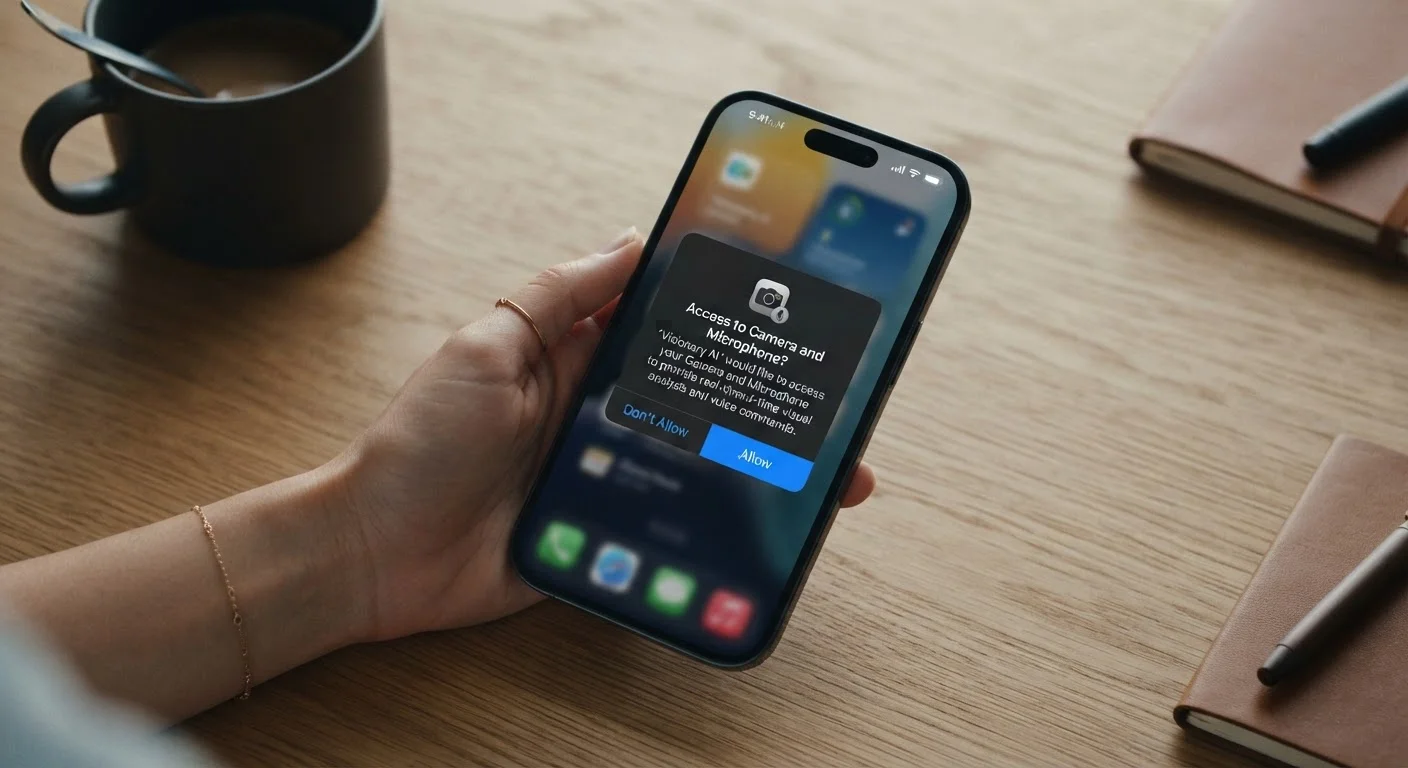
Key Takeaways
- Many app permissions collect more data than the core feature actually requires.
- You can review and revoke permissions at any time through your phone's settings menu.
- Location, contacts, and microphone access carry the highest privacy risk if misused.
- Choosing 'Ask Every Time' or 'While Using' instead of 'Always' meaningfully limits exposure.
- Outdated apps you no longer use often retain permissions even when idle.
Why the 'Allow' Tap Deserves a Second Look
When an app pops up a permission request, most people make a split-second decision based on one thing: they want to keep using the app. That reflexive tap is completely understandable - and it's exactly what app developers count on.
The reality is that many permissions extend well beyond what the feature you're trying to use actually requires. The data collected can be stored, analyzed, or shared in ways that are technically disclosed in a privacy policy most people never read. Understanding what each permission actually enables - and when it's genuinely necessary - puts the choice back in your hands. For a broader look at how your digital activity gets tracked, see what your browser quietly collects too.
How to Review Permissions on Your Phone
On iPhone, go to Settings > Privacy & Security to see a full list of permission categories and which apps have requested each one. On Android, go to Settings > Apps (or App Management) > select an app > Permissions. Both platforms also let you search by permission type to see every app with access to your camera, location, or microphone in one view. Making this a quarterly habit takes only a few minutes and keeps your exposure in check.
The Permissions Worth Slowing Down For
Location access
Location is the permission most apps ask for - and the one most worth scrutinizing. Many apps request "Always On" access, meaning they can track your position even when you're not actively using them. A navigation app needs location while it's open. A coupon app almost certainly does not need it running in the background 24 hours a day.
Both iOS and Android now offer granular controls: While Using the App, Ask Every Time, or Always. Defaulting to "While Using" for most apps gives the feature the access it needs without handing over a continuous movement log.
Background location access can build a detailed log of everywhere you go - without you realizing it.
Microphone access
Microphone permission is necessary for voice calls, voice search, and audio recording. But it's also one of the most requested permissions by apps that have no obvious audio function - shopping apps, games, and utilities among them.
An app with microphone access can, in principle, capture audio whenever it's active. There's no need to grant this permission to an app unless you can articulate exactly why that app needs to hear you. When in doubt, deny it and see whether the core features still work. Odds are, they will.
If you can't explain why an app needs your microphone, that's a strong reason to deny the request.
Contacts
Granting access to your contacts doesn't just share your own information - it shares data about every person saved in your phone. Names, phone numbers, email addresses, and relationship labels can all be uploaded to a developer's servers, often without those contacts ever consenting.
Messaging and calling apps have legitimate reasons to request contacts. Most other categories don't. Review which apps hold this permission in your phone's settings and revoke access for any that don't have a clear functional reason to hold it.
Contacts permission shares other people's private data, not just your own - they never agreed to that.
Camera access
Camera access is one of the most intuitive permissions - of course a photo app needs the camera. The problem arises when apps with no visual function request it. Some retail apps, social platforms, and even games ask for camera access, often burying the justification in vague language about "enhanced features."
A useful rule of thumb: if you've never used a camera-based feature inside an app, revoke the permission. The app will prompt you again if it genuinely needs it for something you want to do.
Revoking camera access from apps you've never photographed anything in is a low-effort, high-value privacy step.
Storage and files
Storage permissions allow an app to read and write files on your device - including photos, documents, and downloads. On older Android versions especially, this could mean broad access to nearly everything stored locally. On newer versions of both Android and iOS, the scope has been narrowed, but the risk hasn't disappeared entirely.
Photo editing apps and cloud backup tools have clear reasons to access storage. A flashlight app or a simple game typically does not. If an app requests storage access and the reason isn't immediately obvious, it's worth looking up the developer's privacy policy before tapping Allow.
Storage access can expose far more personal files than most people realize when they tap 'Allow.'
Health and fitness data
Fitness trackers, sleep apps, and wellness platforms often request access to health data stored on your device - step counts, heart rate readings, sleep patterns, and more. This data is uniquely sensitive because it can reveal personal health conditions, routines, and physical patterns over time.
Health data shared with a third-party app is governed by that app's privacy policy, not necessarily the stronger protections that apply to medical records. Before connecting any app to your device's health platform, read what that app does with the data - particularly whether it's shared with advertisers or data brokers.
Health app data isn't protected like medical records - always check the privacy policy before granting access.
Notifications
Notification permission might feel harmless - after all, it's just about alerts. But notification access can reveal a great deal about your habits: when you wake up, how often you check your phone, which services you use, and when you're active. Some apps also use notification prompts as a funnel to request deeper permissions later.
More practically, unnecessary notification permissions clutter your device and can condition you to ignore alerts - including important ones. Grant notifications only to apps where timely updates genuinely matter to you, and revisit the list periodically to prune what's no longer useful.
Your notification habits reveal more about your daily routine than most people consider before tapping 'Allow.'
Audit Apps You No Longer Use
Apps you've stopped using don't automatically lose their permissions - they continue to hold access until you revoke it or uninstall the app. It's worth scrolling through your installed apps every few months and removing any you haven't opened in 90 days. For those you keep, check whether the permissions still make sense for how (or whether) you're actually using them.
Building a More Deliberate Habit
No single permission decision is catastrophic, but the cumulative effect of granting broad access across dozens of apps adds up to a surprisingly detailed picture of your life. The goal isn't to deny every request - it's to make the decision intentionally rather than automatically.
A few practical steps go a long way: default to the most restrictive option first and upgrade access only if a feature stops working; schedule a quarterly permissions review in your phone settings; and uninstall apps you no longer use rather than letting them accumulate access passively. These habits fit naturally alongside safe everyday online habits that don't require technical expertise to maintain.
Your phone is one of the most personal devices you own. The permissions you grant shape how much of that personal space gets shared - and with whom.