

Key Takeaways
- Back up your old phone to the cloud or a computer before you do anything else.
- Both Android and iPhone have built-in transfer tools that move most data automatically.
- Always verify contacts, photos, and apps after the transfer before wiping your old device.
- Keep your old phone active and unwiped until you confirm everything arrived safely.
- A strong Wi-Fi connection speeds up the backup and transfer process significantly.
What you will need
Why a Careful Transfer Matters
Switching to a new smartphone is exciting - but rushing through setup is one of the most common ways people accidentally lose contacts, photos, or app data they can't recover. Unlike replacing a laptop, a smartphone holds a highly personal mix of data: years of photos, payment methods, two-factor login apps, and messaging threads. A thoughtful, step-by-step process protects all of it.
The good news is that both major platforms - Android and iPhone - have made the process significantly easier in recent years. Built-in tools do most of the heavy lifting, provided you've set up a backup first. The steps below apply whether you're staying on the same platform or making the switch between them.
What you will need
Make sure you have everything above ready before starting. A stable Wi-Fi connection is especially important - cloud backups and transfers can consume substantial data if run over a mobile network.
Wi-Fi Makes Everything Faster
Both backup and restore processes move dramatically faster on a strong Wi-Fi connection. If your home connection feels slow, consider positioning your phone close to the router during the process. For a deeper look at how your home and mobile connections differ, see our explainer on mobile data vs. home Wi-Fi.
Step-by-Step Transfer Process
Check your cloud storage space
Before backing anything up, confirm you have enough room. On iPhone, go to Settings > [your name] > iCloud > Manage Storage. On Android, open Settings > Google > Backup to see your current usage. Free iCloud and Google accounts include 5 GB and 15 GB respectively - if your backup is larger, you may need to temporarily expand your storage plan or remove old backups from other devices to free up space.
Back up your old phone
iPhone: Go to Settings > [your name] > iCloud > iCloud Backup and tap Back Up Now. Keep the screen on and stay connected to Wi-Fi until the backup completes. You'll see a timestamp confirming when it finished.
Android: Go to Settings > Google > Backup and tap Back up now. This saves app data, call history, contacts, device settings, and SMS messages to your Google Account.
For photos specifically, open Google Photos or the Apple Photos app and confirm that sync is enabled and up to date - look for a checkmark or "Backup complete" status.
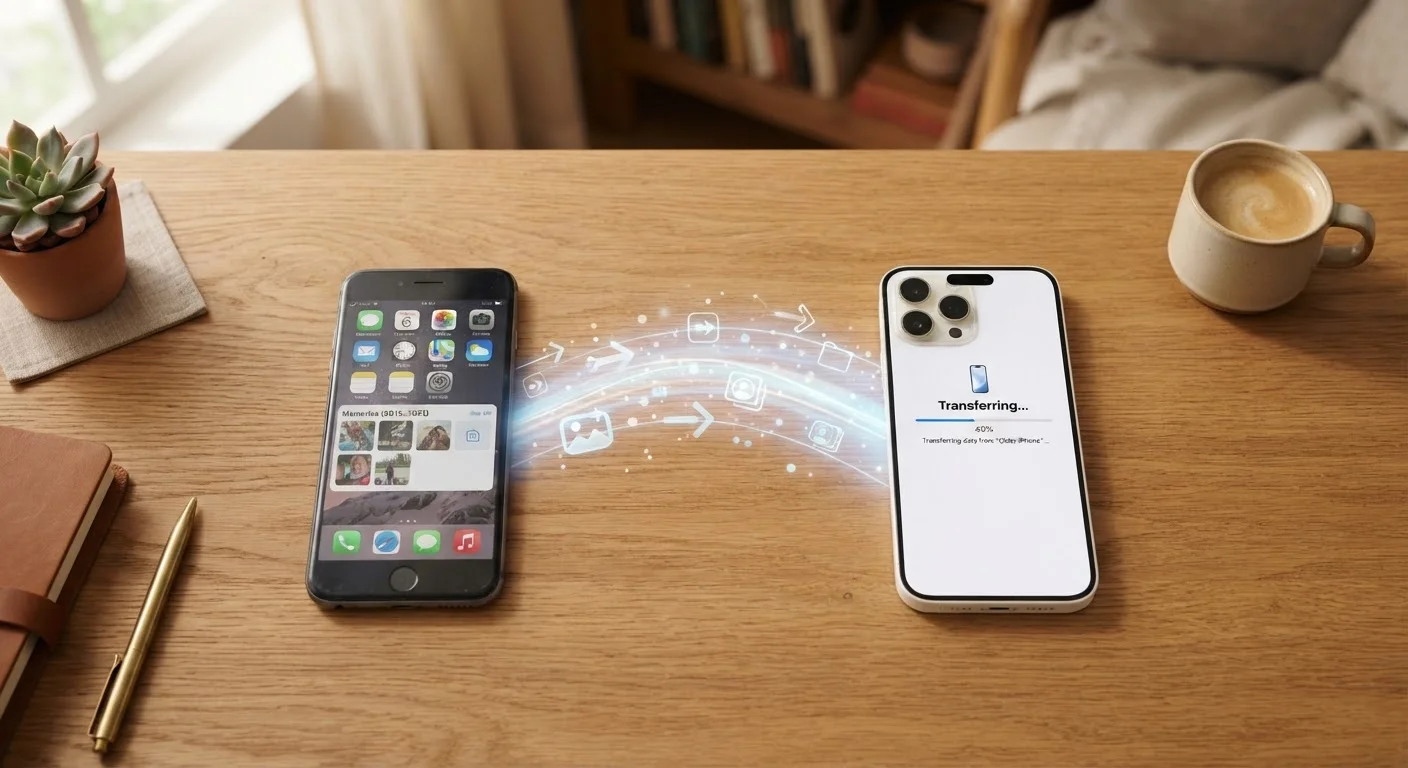
Use the built-in transfer tool on your new phone
Most modern smartphones include a guided setup wizard that runs when you first power them on. Don't skip it - this is the easiest way to transfer your data.
- iPhone to iPhone: Use Quick Start, which appears automatically when the two phones are near each other. Alternatively, restore from an iCloud backup during setup by selecting Restore from iCloud Backup.
- Android to Android: The setup wizard will prompt you to copy from your old device using a cable or Wi-Fi Direct. Follow the on-screen steps to select which data to move.
- Switching platforms (Android to iPhone or vice versa): Apple's Move to iOS app (available on Android) handles cross-platform transfers. Google's setup wizard on Android can import contacts and calendars from an Apple ID.
Re-download your apps
App transfer restores your app list and most settings, but the actual app files are re-downloaded from the App Store or Google Play. Make sure you're connected to Wi-Fi - re-downloading dozens of apps over mobile data can consume your monthly allowance quickly. See our guide to data-draining habits for context on how much this can add up.
Sign in to each app individually, especially banking, email, and two-factor authentication apps. Two-FA apps like authenticators often require manual re-setup - check their specific migration instructions before wiping your old phone.
Verify your data before wiping the old phone
Spend at least 30 minutes on your new phone checking that everything arrived intact:
- Contacts: Search for a few specific names to confirm they transferred.
- Photos: Scroll to recent photos and also check a photo from a year or two ago.
- Messages: Confirm your SMS and messaging app threads are present.
- Apps: Open a few key apps and verify your account data, settings, and history loaded correctly.
Only when you're satisfied should you consider resetting your old device. If you plan to pass it along to someone else, our checklist for repurposing a used device walks through the proper steps for wiping and securing it.
Don't Wipe Your Old Phone Too Soon
It can be tempting to reset your old phone the moment setup feels complete, but hold off for at least 24-48 hours. Some app data, game progress, or message threads may not fully sync until apps have had time to run in the background. A premature wipe can result in permanent data loss that no backup can recover.
Authenticator Apps Require Special Attention
Two-factor authentication apps (used for secure logins) store secret keys locally and do not always back up automatically. If you use one to log in to financial, email, or work accounts, look up that app's specific account migration or export process before you start. Losing access to your authenticator without a backup can lock you out of important accounts entirely.
Once you've verified your data and are confident the transfer is complete, your new phone is ready for daily use. For an overview of how your new device connects to the internet and mobile networks, the complete connectivity overview is a helpful next read.