

Key Takeaways
- Your tap is detected by a capacitive sensor grid embedded beneath the screen's glass surface.
- A dedicated touch controller chip converts the electrical signal into coordinate data before the processor sees it.
- The operating system interprets coordinates to determine which app element was tapped.
- The entire tap-to-response cycle typically takes under 100 milliseconds on modern smartphones.
- Multiple processor cores and the GPU work together to update what you see on screen after a tap.
- Understanding this chain helps explain why screen protectors, moisture, and gloves can affect touch accuracy.
Touchscreen Input Processing
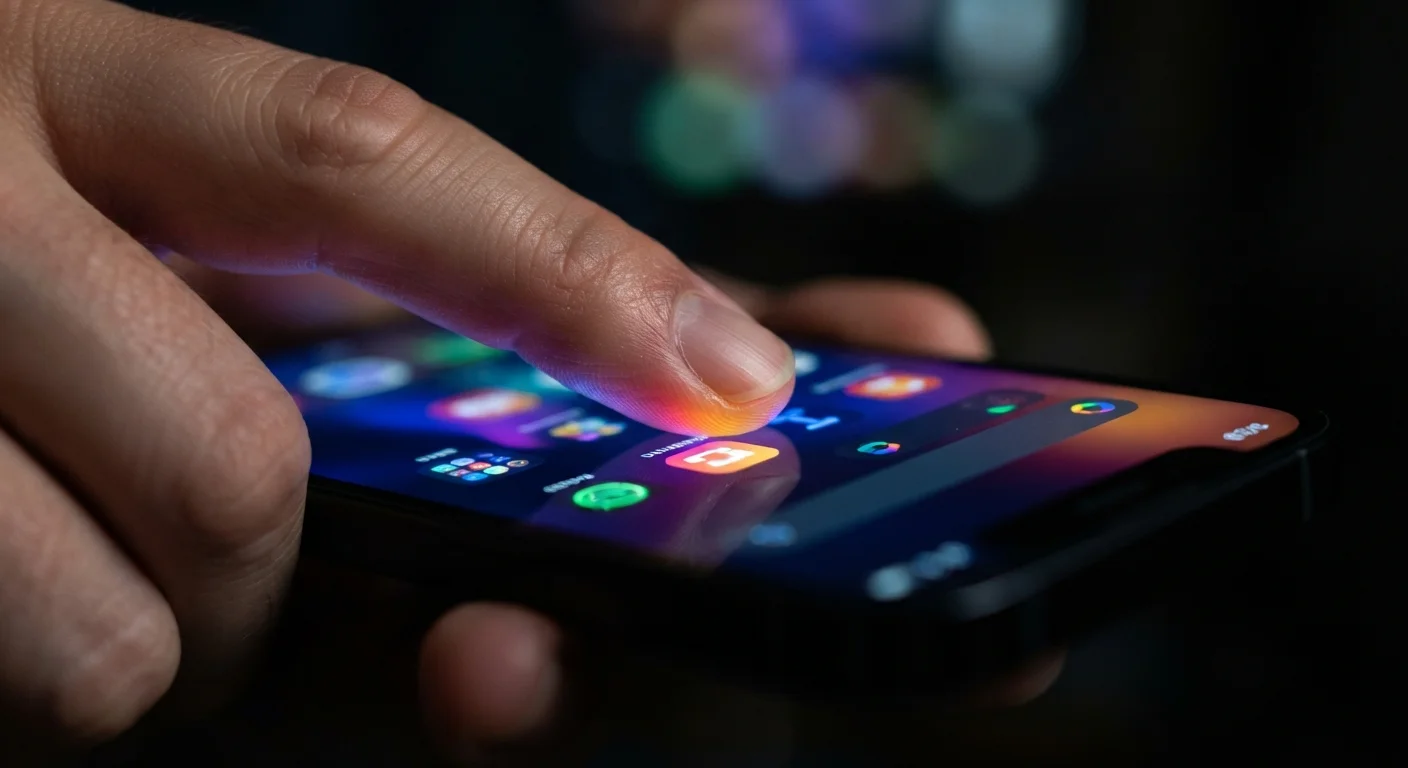
When you tap your smartphone screen, your device doesn't just "see" the touch - it runs a fast sequence of electrical detection, signal interpretation, and software decisions that together produce the result you expect, like opening an app or sending a message. This process involves specialized hardware layers, a central processor, and the operating system working in coordination. The whole sequence typically completes in milliseconds.
Most modern smartphones use capacitive touchscreens, which detect changes in an electrical field caused by the conductivity of a human finger - rather than physical pressure.
Step 1: The Touchscreen Detects Your Finger
Your smartphone's display is not just one piece of glass - it's a layered sandwich of materials. Beneath the protective outer glass sits a transparent grid of electrodes arranged in rows and columns, forming the capacitive sensor layer.
This grid carries a small, constant electrical field. When your finger - which conducts electricity - comes close to the surface, it disturbs the field at the point of contact. The sensor grid detects exactly where that disturbance occurred by identifying which row and column coordinates registered the change.
This is why capacitive screens respond to bare skin or a stylus with a conductive tip, but not to a pencil eraser or most standard gloves. No conductivity, no signal.
Capacitive vs. Resistive Touchscreens
Older or specialized devices - like some industrial equipment or older GPS units - used resistive touchscreens, which detect physical pressure rather than electrical conductivity. These screens respond to any object, including gloved hands or styluses, but offer less precision and don't support multi-touch. Virtually all modern consumer smartphones use capacitive technology. You can learn more about how device technologies compare in our fact-check of common device myths.
Step 2: The Touch Controller Translates the Signal
The sensor grid doesn't send raw data directly to the main processor. Instead, it routes the electrical reading to a dedicated touch controller chip - a small, specialized processor built specifically for this task.
The touch controller converts the analog electrical disturbance into precise digital coordinates: an X and Y position on the screen. It also handles filtering, discarding noise from accidental grazes or moisture, and can track multiple contact points simultaneously for gestures like pinch-to-zoom.
This separation of duties matters. Offloading touch processing to a dedicated chip keeps the main processor free for other work and reduces how much energy is consumed during routine interaction. It's part of a broader design principle - explained in more depth in our complete guide to how your devices work together - where modern gadgets distribute tasks across specialized components.
~1ms
Touch sensor polling interval on flagship phones
High-end smartphones can poll their touch sensors every millisecond, enabling them to detect rapid or complex gestures with high accuracy.
50-120ms
Typical end-to-end touch response latency
Industry benchmarks and display research generally place the full tap-to-screen-update cycle for modern smartphones in the 50-120 millisecond range.
10+
Simultaneous touch points modern screens support
Most current smartphone touchscreens are engineered to track ten or more distinct contact points at once, enabling complex multi-finger gestures.
Step 3: The Operating System Decides What You Tapped
Once the touch controller passes the coordinates to the main processor, the operating system takes over. It checks which application is currently displayed on screen and maps the tap coordinates against a layout of interactive elements - buttons, links, input fields, icons - rendered in that view.
If your tap lands on a button, the OS triggers that button's associated action. This mapping happens extremely quickly, but it's why tapping the very edge of a small button sometimes misses - the touch landed outside the element's defined boundary.
The OS also distinguishes between tap types. A brief tap, a long press, and a swipe all produce different coordinate patterns over time, and the system interprets each differently. Every app can define its own gesture responses within limits set by the operating system.
It's worth noting that after the OS processes your tap, it may also trigger app-level behavior - including activating permissions. See our overview of app permissions most people grant without thinking twice for context on what runs in the background after a tap.
Step 4: The Processor and GPU Update Your Screen
After the OS determines what was tapped, it signals the relevant app to respond and prepares a new visual frame - the updated screen image you see. This involves both the CPU (central processing unit) and the GPU (graphics processing unit).
The CPU handles logical decisions: updating data, running app code, triggering animations. The GPU handles the visual rendering: calculating which pixels should change color, compositing layers, and pushing the final frame to the display at the right moment.
On most modern smartphones, this entire chain - from finger touching glass to an updated image appearing on screen - takes between 50 and 120 milliseconds. Screens with higher refresh rates (such as 90Hz or 120Hz) can display new frames more frequently, making interactions feel noticeably smoother even though the underlying processing speed is similar.
Keep Your Screen Clean for Best Responsiveness
Oils, dust, and moisture on your screen's surface can interfere with the capacitive sensor's ability to accurately read your touch. A quick wipe with a dry microfiber cloth removes most interference and keeps tap accuracy sharp. Avoid using wet cloths unless the manufacturer specifies water resistance.
For a broader look at how your phone manages resources like data in the background while all this is happening, our article on things that quietly drain your monthly mobile data is worth a read.