

Key Takeaways
- Background app refresh silently uses data even when you're not actively using an app.
- Auto-playing videos in social media feeds are among the heaviest hidden data consumers.
- Cloud backups often default to running over cellular when Wi-Fi isn't available.
- Streaming at high quality settings drains data significantly faster than lower resolutions.
- Your phone's operating system itself downloads updates that can consume hundreds of megabytes.
- Checking your carrier's data usage tool monthly helps catch runaway apps before overages occur.
Where Does All That Data Actually Go?
You haven't watched a single video, you've barely touched your phone - and yet your carrier app shows you're already halfway through your monthly data allowance. Sound familiar? The culprit is rarely one big event. More often, it's a steady accumulation of small, invisible transfers happening all day long.
Most people think of data usage as something they control: loading a webpage here, streaming a song there. In reality, your phone is constantly communicating in the background - fetching updates, syncing files, refreshing feeds - whether your screen is on or not. Understanding which activities quietly eat through your plan is the first step to staying in control. For a broader look at how mobile data actually works alongside your home connection, see how mobile data and Wi-Fi share the load.
Background App Refresh
When an app is closed on your screen, it isn't necessarily idle. Both iOS and Android allow apps to refresh their content in the background so that when you open them, they already show the latest information. News apps reload headlines, email apps fetch new messages, social platforms pre-load your feed - all over cellular if Wi-Fi isn't available.
You can disable background refresh entirely or restrict it to Wi-Fi only. On iPhone, go to Settings > General > Background App Refresh. On Android, the path varies by manufacturer but is typically found under Settings > Apps, then individual app settings. Restricting this to apps that genuinely need it - such as navigation or messaging - can make a noticeable difference.
Apps refresh silently in the background whether you open them or not.
Auto-Play Video in Social Media and News Feeds
Scrolling through a social media feed or news app triggers video after video to begin playing automatically. Each one streams data whether you intended to watch it or not. Video is the single most data-intensive content type on a phone, and even short clips add up quickly across dozens of daily scroll sessions.
Most platforms - Instagram, TikTok, Facebook, YouTube, X - have settings to disable auto-play on cellular data or reduce video quality when not on Wi-Fi. These settings are usually tucked inside each app's individual settings menu rather than your phone's system settings, so they require a one-time setup per app.
Auto-playing video is the single heaviest invisible data drain in most people's daily usage.
Cloud Backup Services Running on Cellular
Photo backups, document sync services, and full device backups are designed to protect your data - but by default, many will run over a cellular connection if Wi-Fi hasn't been detected for a while. A photo library backup alone can transfer gigabytes in a single session.
Services like iCloud, Google Photos, and OneDrive each have toggles to restrict syncing to Wi-Fi only. Enabling this setting ensures backups wait for a Wi-Fi connection rather than quietly consuming your cellular plan. For a practical walkthrough of managing these settings when switching phones, setting up a new smartphone without losing data is a useful reference.
Photo and document backups can quietly transfer gigabytes if not restricted to Wi-Fi.
Streaming at Default Quality Settings
Music and podcast apps typically stream at a standard quality level that balances sound fidelity with data efficiency. But many default to higher-quality streams when cellular speeds allow it - consuming two to three times as much data per hour compared to a lower-quality setting. Video streaming apps behave similarly, often defaulting to the highest resolution the connection supports.
Checking the playback or streaming quality settings inside each app - Spotify, Apple Music, Netflix, and others all have these - and selecting a lower quality tier for cellular use can substantially reduce consumption without a noticeable drop in everyday listening or viewing experience.
Streaming at default quality can use two to three times more data than a lower setting.
Operating System and App Updates
Your phone periodically checks for and downloads system software updates and app updates. A single OS update can run from a few hundred megabytes to several gigabytes. App stores, by default, may be set to update apps automatically over cellular - meaning dozens of small updates accumulate without any action on your part.
On both iOS and Android, automatic app updates can be restricted to Wi-Fi only in the App Store or Play Store settings. System updates usually prompt before downloading on cellular, but it's worth confirming your settings reflect what you actually want.
A single OS update can consume several gigabytes if downloaded over cellular by default.
Location Services and Mapping Apps Running in the Background
Apps with location permissions - delivery apps, weather apps, fitness trackers, and some social platforms - periodically ping location services and transmit that data back to their servers. This activity is relatively modest per instance, but across many apps over many hours, it adds up. Some apps request always on location access, meaning they track and transmit even when you're not using them.
Reviewing which apps have always-on location access (under Location Services in your phone's privacy settings) and downgrading unnecessary ones to only while using the app reduces both data usage and privacy exposure. For more on what permissions apps commonly request, see app permissions most people grant without thinking.
Always-on location access means apps transmit your position even when you're not using them.
Push Notifications Fetching Preview Content
When a notification arrives - a new email, a breaking news alert, a social mention - many apps don't just deliver a text message. They pre-fetch a thumbnail image, an email preview, or a content snippet to display in the notification itself. Multiply this across dozens of apps sending dozens of notifications per day, and it represents a consistent, overlooked trickle of data.
Reducing the number of apps allowed to send notifications, or disabling rich notification previews where the option exists, trims this usage. Your phone's notification settings let you review and adjust permissions for every installed app at once.
Rich notification previews silently pre-fetch images and content with every alert delivered.
Taking Back Control of Your Data
None of these drains are inevitable. Most smartphones - both iOS and Android - give you granular controls over which apps can use cellular data, when backups run, and what quality settings streaming services default to. Spending fifteen minutes in your phone's Settings app reviewing data permissions can meaningfully extend how far your monthly plan stretches.
Check Your Carrier's Data Usage Tool Monthly
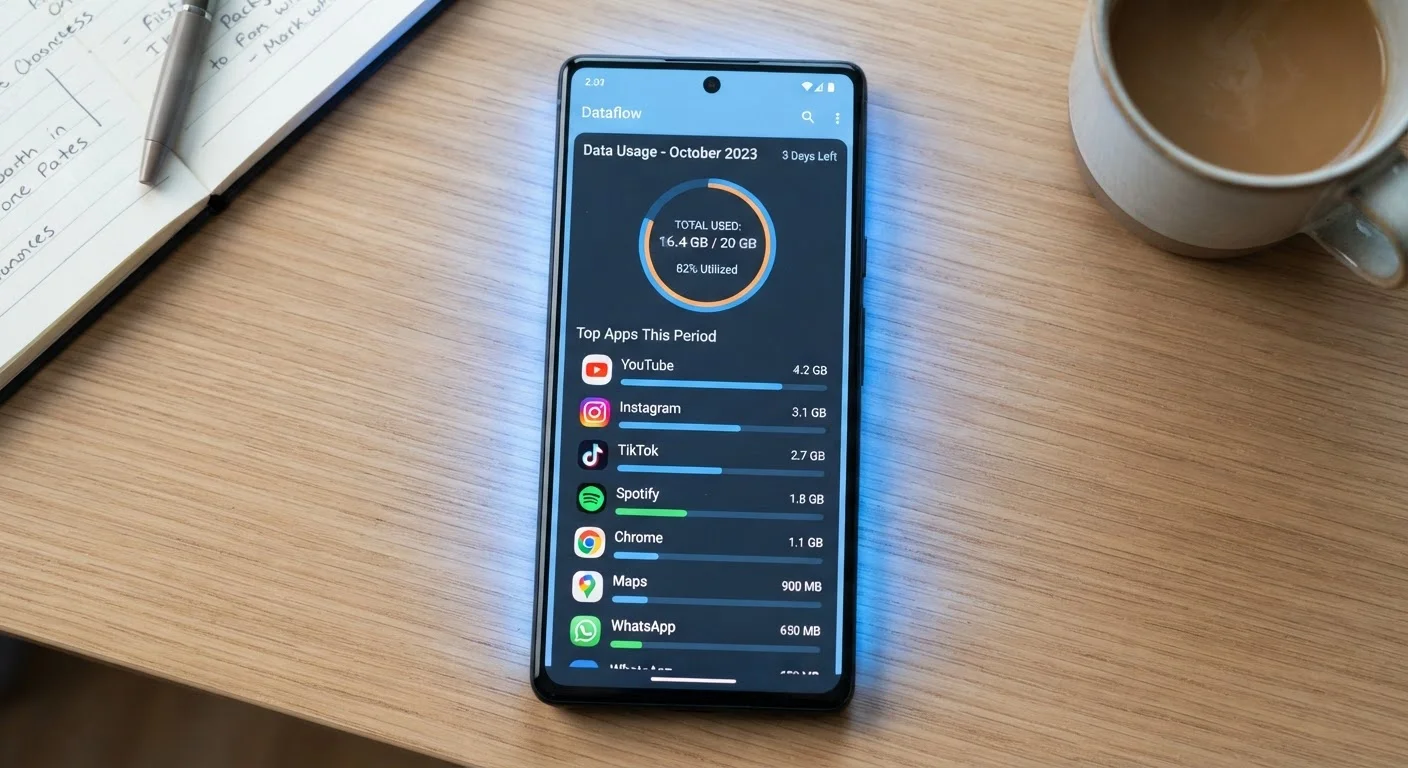
Most carriers provide a built-in app or online portal that breaks down data usage by app or time period. Reviewing this once a month - not just when you're near your limit - helps you spot patterns early and make targeted adjustments. Your phone's own Settings app also shows a per-app cellular data breakdown under Mobile Data or Cellular, which updates in real time.
If you find yourself regularly hitting limits before the month ends, it's also worth revisiting how your plan is structured. Many plan features - including what counts toward your data cap - are commonly misunderstood. Common plan misreading mistakes covers where assumptions most often go wrong and lead to surprise charges. You can also explore a full overview of modern mobile connectivity for deeper context on how it all fits together.