

Key Takeaways
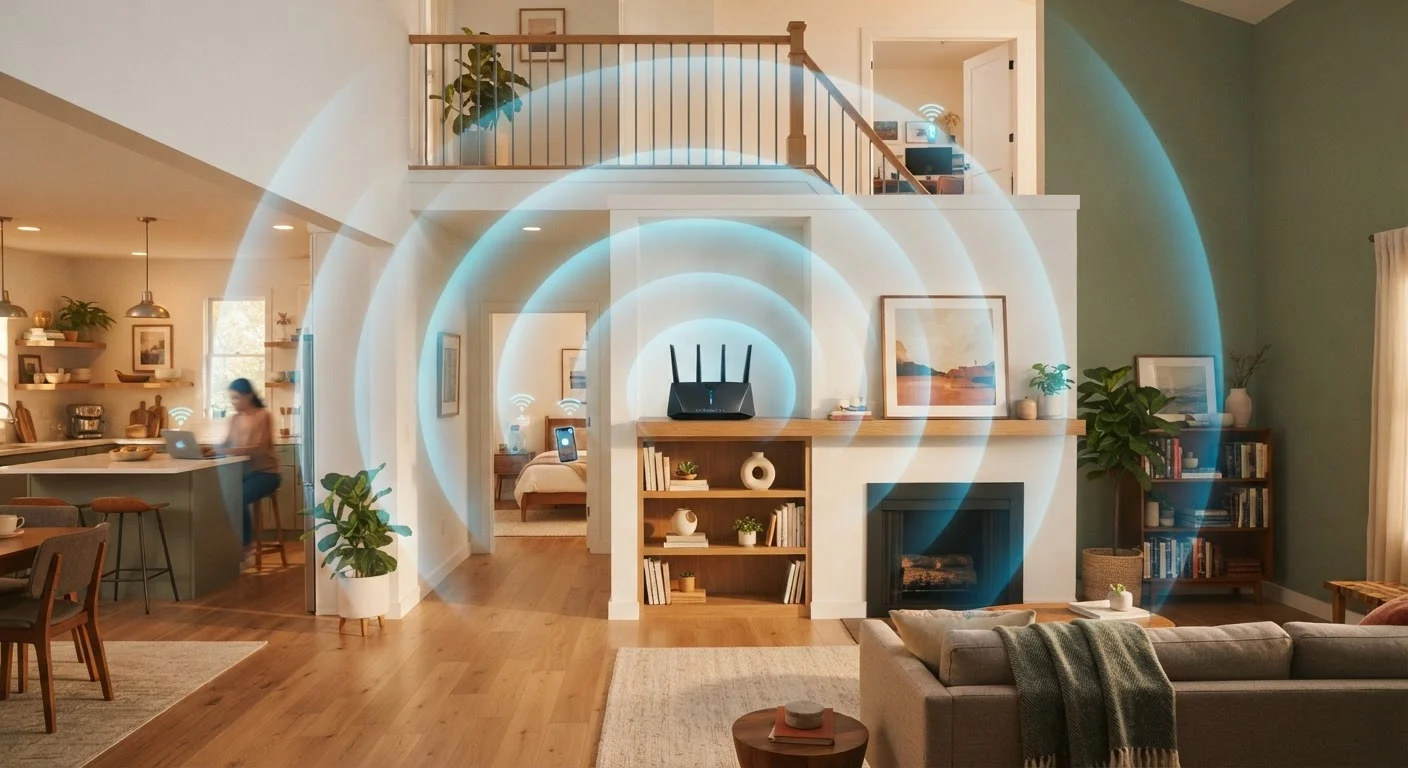
- Placing your router in a central location is the single most effective way to improve whole-home coverage.
- Physical obstructions like walls, floors, and appliances meaningfully reduce signal strength over distance.
- Elevation matters - routers broadcast signal outward and slightly downward, so higher placement helps.
- Keeping your router away from interference sources like microwaves can stabilize your connection.
- Adjusting placement costs nothing and often delivers noticeable improvements before buying new equipment.
Why Location Is the Foundation of Good Wi-Fi
Most people set up their router wherever it's convenient - usually wherever the cable enters the home - and never move it again. That single decision shapes every streaming session, video call, and download that happens under that roof.
A router broadcasts radio waves in all directions. The closer a device is to the source, and the fewer obstacles between them, the stronger and more consistent the signal. Move the router to a better spot and every connected device benefits - no new equipment required.
Understanding what affects signal helps you make smarter placement choices. For a broader look at how Wi-Fi and mobile data interact day to day, see Mobile Data vs. Home Wi-Fi.
Place your router as close to the center of your home as possible.
A router in a corner sends roughly half its signal through exterior walls and out of the home - wasted coverage. A central position distributes signal more evenly to every room, reducing the distance any device has to reach.
Elevate your router off the floor - a shelf or tabletop at waist to shoulder height works well.
Wi-Fi signals spread outward and slightly downward from the antenna. Placing the router on the floor means much of that signal is absorbed by the ground before it reaches devices at desk or couch height. Elevation gives the signal a better angle.
Keep your router in open air, not inside a cabinet or closet.
Enclosing a router in cabinetry blocks signal in every direction. Even a partially enclosed space - like a cabinet with a back panel - can reduce range significantly compared to an open shelf.
Minimize the number of walls and floors between your router and your most-used devices.
Every physical barrier a signal passes through weakens it. If you work from home in a second-floor office, positioning the router on the first floor directly below - rather than at the far end of the house - can make a meaningful difference.
Position your router away from other electronics that can cause interference.
Devices like microwaves, baby monitors, and older cordless phones operate on frequencies that overlap with the 2.4 GHz Wi-Fi band. Proximity to these devices can cause intermittent slowdowns or dropped connections, particularly for devices that don't support the less-congested 5 GHz band.
Placement Practices That Make a Real Difference
These principles apply to almost any home layout and any router model. Think of them as a checklist you can work through in an afternoon.
If you find certain rooms are still struggling after repositioning your router, that's a signal your home may need additional coverage solutions. Our guide on mesh networks and range extenders walks through the options.
What's Actually Blocking Your Signal
Not all obstructions affect Wi-Fi equally. Understanding the difference helps you evaluate whether a placement change will help or whether a structural barrier is the real issue.
~45%
Signal loss through a single concrete wall
Radio frequency engineering studies estimate that a standard concrete or brick wall can attenuate 2.4 GHz Wi-Fi signal by roughly 40-50%, compared to around 10-15% for a typical drywall partition.
2-3x
Signal range reduction when router is enclosed
Placing a router inside a closed cabinet or closet can reduce its effective range by half or more compared to open-air placement, according to general wireless networking guidance.
Concrete, brick, and metal studs absorb and reflect radio signals much more aggressively than standard wood-framed drywall. If your router is on one side of a concrete fireplace or behind a metal appliance, the effective signal on the other side can drop dramatically - even if the physical distance is small.
Appliances that operate on the 2.4 GHz frequency band - including many microwaves and older cordless phones - can temporarily interfere with Wi-Fi on that same band. Keeping your router at least a few feet from such appliances reduces the chance of interference. For more on what does and doesn't affect signal the way most people assume, see Common Myths About Wi-Fi Range and Signal Strength.
Two Wi-Fi Bands, Two Different Situations
Most modern routers broadcast on both 2.4 GHz and 5 GHz frequencies. The 2.4 GHz band travels farther and penetrates walls better but is more susceptible to interference and congestion. The 5 GHz band is faster at close range but loses strength more quickly over distance. If your router lets you manage these bands separately, placing devices that need range (like smart home gadgets) on 2.4 GHz and closer, bandwidth-hungry devices on 5 GHz can improve overall performance.
If your work or entertainment setup demands the most stable connection possible regardless of router placement, a wired connection may be worth considering. See Wired vs. Wireless: The Real Difference an Ethernet Cable Makes to understand when it matters most.